
A screenshot with a quote you need, a photo of a contract, a shot of a menu in a foreign language, or tiny text on a receipt — and each time it's the same: trying to make out the writing, retyping by hand, or looking for a separate OCR service, uploading, waiting. The "Photo and document analysis" module in VELA's AI assistant clears all of that with one message in Telegram. Pulling text out of a photo is now a single action: send the photo with a caption saying what you need, and the text comes back as a reply in seconds.
The module is available on both plans: Basic (the free plan) and Pro.
How it works in practice
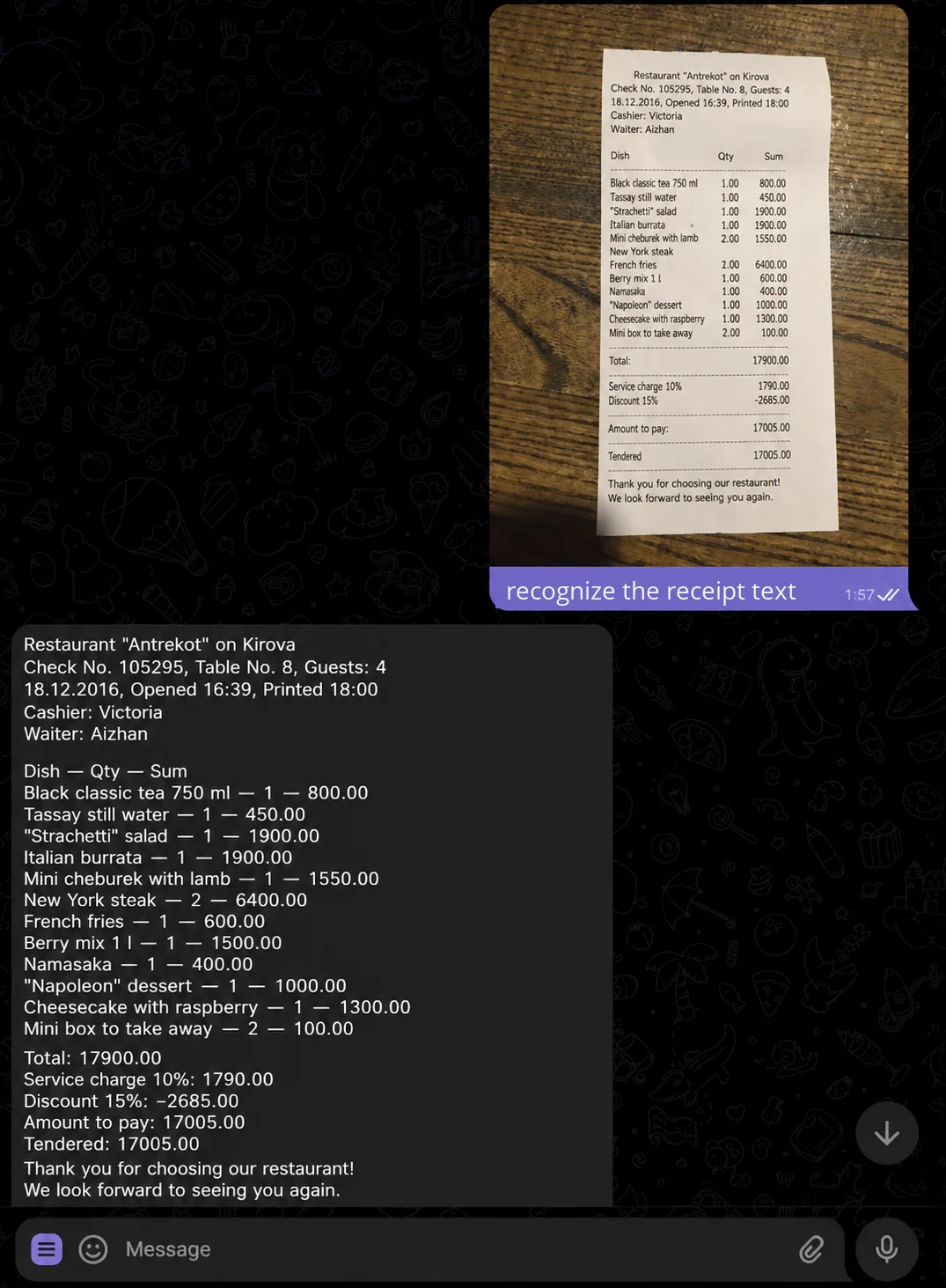
Say a colleague sent a screenshot with contract terms and you need to quickly paste a key paragraph into an email. Retyping by hand is several minutes and a risk of errors. The alternative: open the gallery, find the right photo, go to an OCR site, upload, copy the result, go back to email. That's five or six switches and steps for one simple task.
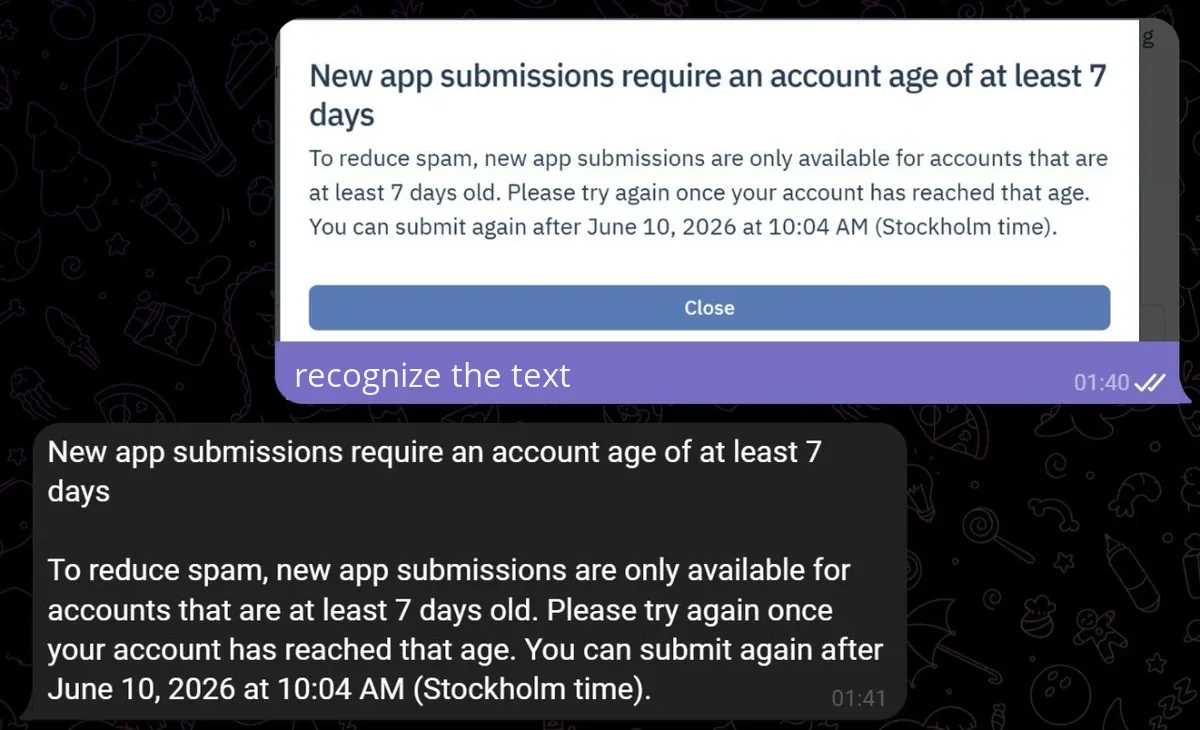
With VELA's AI assistant it's one step. You pick and send the photo you need right into the dialog with your AI assistant in Telegram, with the caption "recognize the text" or "write out the text from the photo below", and get clean, ready text in reply within seconds. After that you can copy it, ask to translate it, ask a question about the content: all in the same chat.
Example requests
The AI assistant understands the question phrased in your own words. Here are a few options that work:
"recognize the text" — with an attached photo
"what's written on this screenshot" — with a screenshot
"read the text from the photo" — with any shot containing text
"pull the text out of here" — with a photo of a document
"translate what's written here" — with an image in a foreign language
If the text is in English, Kazakh, Korean or any other language, the AI assistant will read it and translate it if needed.
One nuance: if you send a photo without a caption, the AI assistant won't analyze it on its own. It holds the photo and asks what you want done with it. That's deliberate: so it doesn't comment on every screenshot, file or photo you send. Just add a caption with a request, and the analysis will start. The file stays in the buffer for 30 minutes, if you don't say what to do with it in that time, you'll need to send it again.
How to recognize text from several photos at once
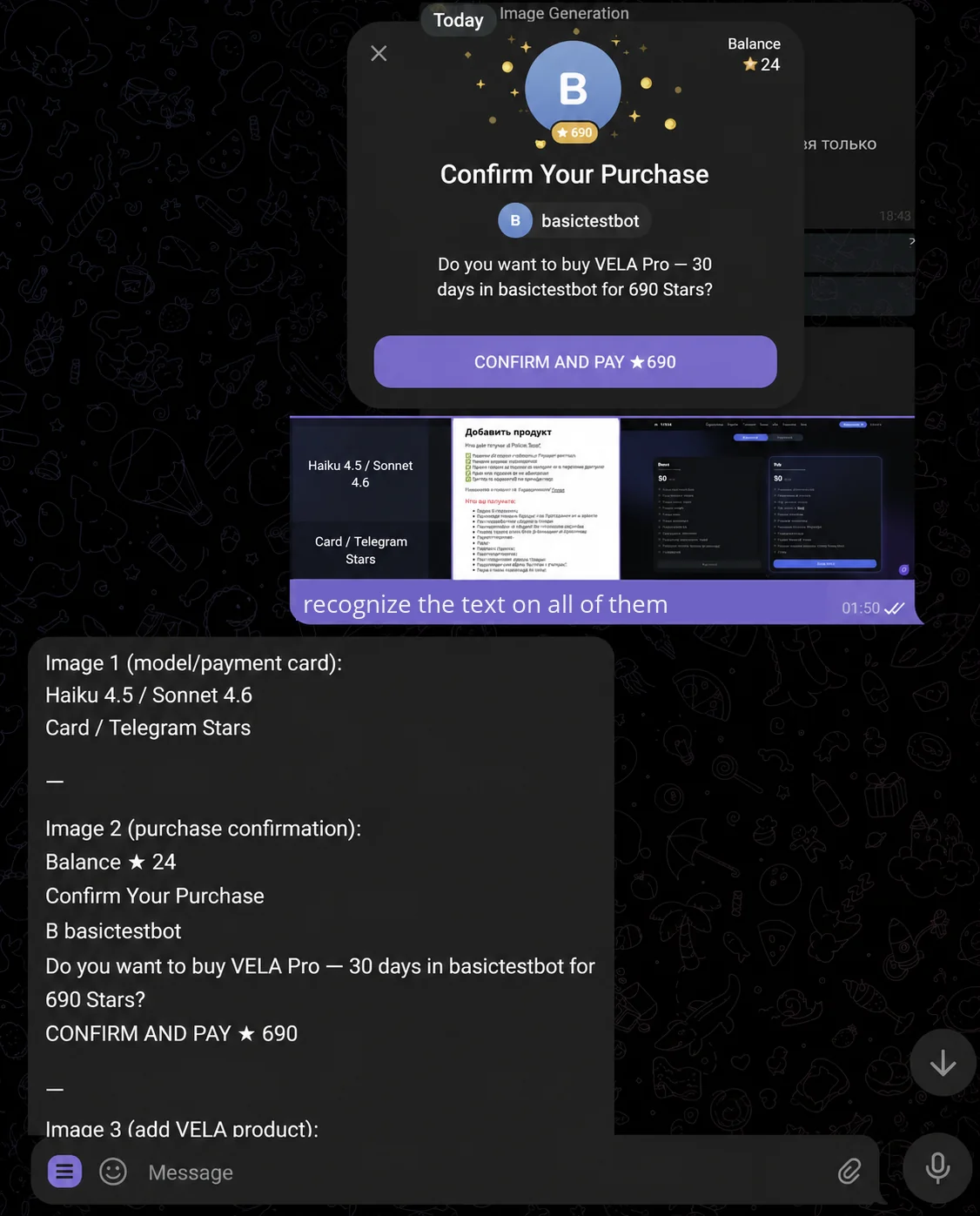
If you need to recognize text from several photos at once, you don't have to send them one by one. You can select up to 5 photos and send them in one message with a caption. The AI assistant will process them all together and return the text from each image.
This is handy, for example, when you need to pull data from several pages of a scanned document or from a series of screenshots.
Plan limits
The module works on both plans, but the limits differ:
Basic (free): up to 5 photos a day, up to 3 analyses a day
Pro ($12/mo): up to 30 photos a day, unlimited analyses
If during the day you need to recognize text from dozens of photos, the limits on the Basic plan won't be enough. For one-off tasks or a few photos a day, it's plenty.
When the limit is reached, the AI assistant will report it and suggest switching to Pro.
What else the module can do besides text recognition
Recognition is one of the functions of the "Photo and document analysis" module. The same module can:
Analyze the contents of documents (PDF, DOCX, TXT, XLSX — just send the file to the chat)
Answer questions about the content — "find the section about payment in this contract"
Count calories from a photo of food — "count the calories" with a photo of a dish or products on the table
Make a summary of a document with one command
More about what the module can do with documents and files of various formats, in the article on photo and document analysis.
What the module can't do
A few honest limits:
Doesn't process video — only static photos and documents
No automatic recognition without a caption on the photo — an explicit request is needed
Maximum 10 photos at a time — the rest of the group won't be saved, they need to be sent separately
A limited list of file formats — photos (JPG, PNG, etc.), PDF, DOCX, DOC, TXT, XLSX.
Combining with other modules
Recognized text is already ready material for the next step. Right in the same dialog you can:
Ask to translate it into another language
Send the result by email through Gmail (the Pro plan, the Google Workspace integration)
Save it to Google Drive or create a Google Doc with the text
Ask clarifying questions about the document's content
All of this without switching apps: one chat, one chain of requests, all in Telegram.
More about what other daily tasks the AI assistant covers, in an honest breakdown.
FAQ
Which plan is text recognition from a photo available on? The "Photo and document analysis" module is available on the Basic plan. Limit: up to 5 photos and 3 analyses a day. On the Pro plan the limit expands to 30 photos a day with no restrictions on analyses.
Do I need to turn anything on or configure it? No. The module is active right after you create your AI assistant on the VELA platform — no settings needed. Just send a photo with a caption.
Does the AI assistant read text in any language? Yes. Under the hood is Claude from Anthropic, which understands most of the world's languages. Text in English, Kazakh, German, Korean, Chinese — it all gets read. After recognition you can ask to translate it into Russian in a follow-up message.
Can I send several photos at once? Yes, up to 5 photos in one message with a caption — the AI assistant will process them together. Without a caption — it'll save them to a buffer and ask what to do with them next.