
Email, calendar, tasks, files — four Google services, each with its own app and browser tab. VELA's AI assistant connects all of them to Telegram in a couple of minutes: Gmail, Google Calendar, Google Tasks, and Google Drive are available in one chat with your personal AI assistant.
Google Workspace is part of the Pro plan ($12/mo, paid by card, Telegram Stars or crypto). You connect it in the dashboard through standard Google sign-in.
How to connect Google Workspace
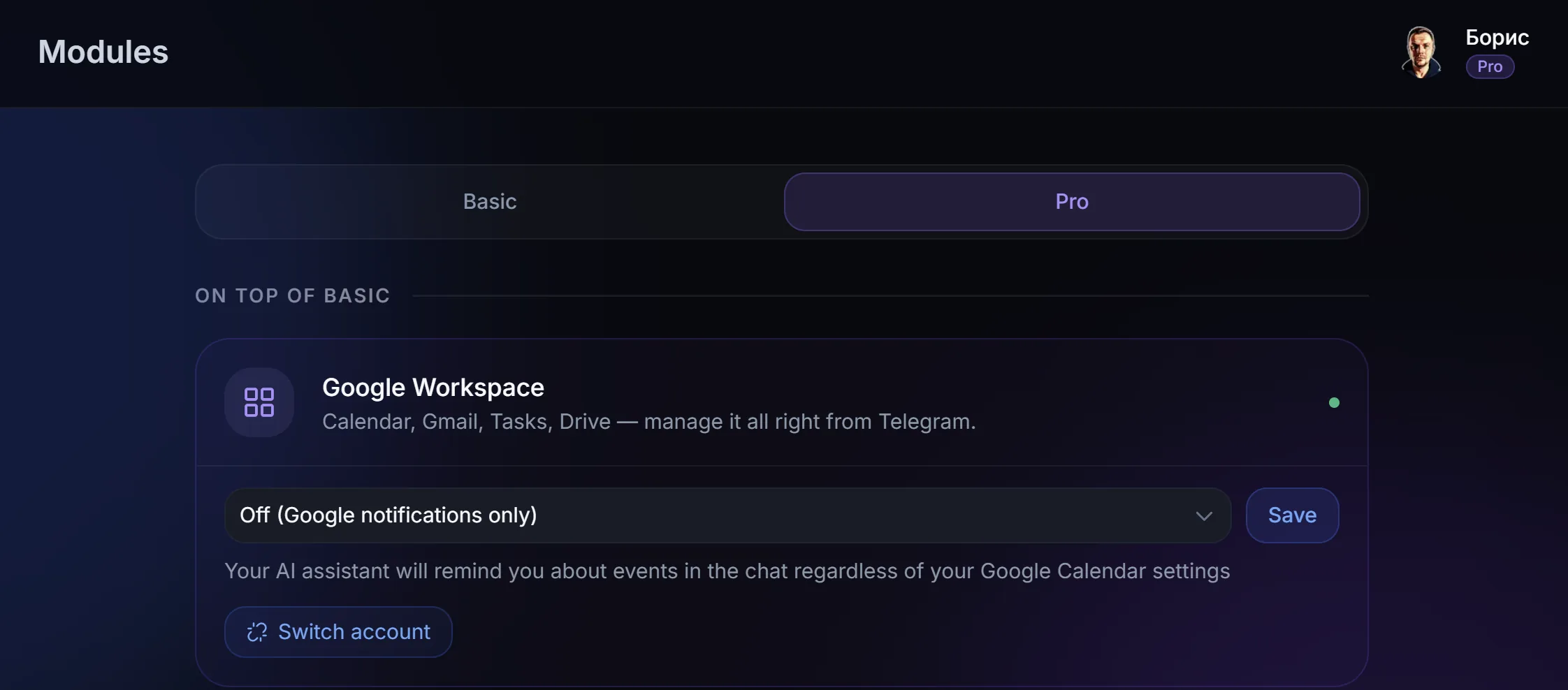
One connection covers all four services at once: open the VELA dashboard → "Integrations" section → find the "Google Workspace" integration card → click "Connect" → sign in with your Google account.
One sign-in, and Gmail, Calendar, Tasks, and Drive all become available together. You can't connect just one service selectively. If you don't need all four (say, you only need email), simply don't use what you don't need.
Gmail: email right in the chat
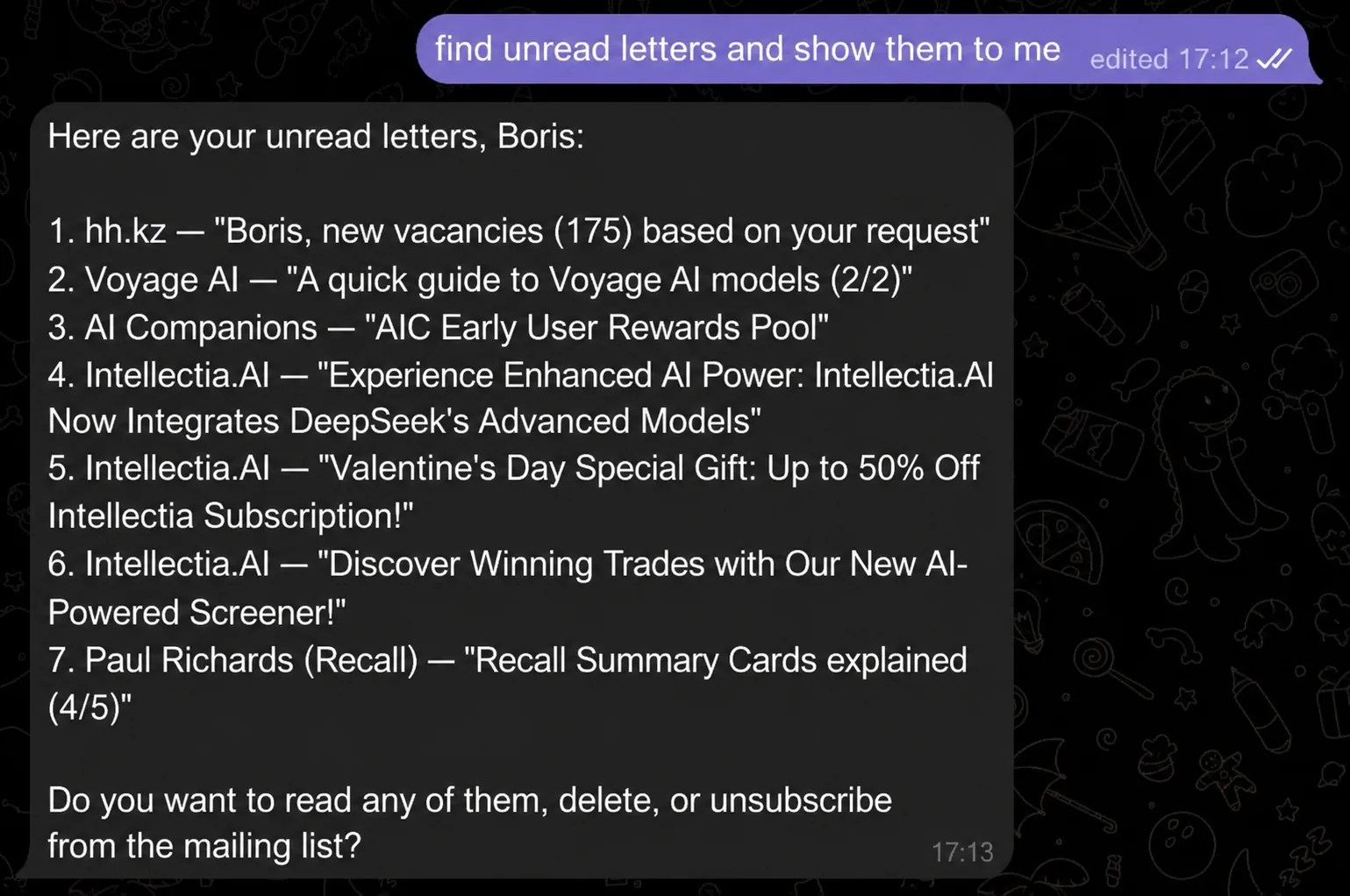
Now you don't have to dig for emails in a browser or a phone app. Tell the AI assistant what you need, it finds the email, reads it, sends a new one or a reply, deletes it, or unsubscribes you from a mailing list. Everything you used to do by hand in Gmail, you can now do through Telegram with quick commands.
What Gmail can do:
Search emails ("find emails from Anton this week", "show unread", "April invoices from...", etc.)
Read the full text of an email
Send a new email and reply in a thread ("reply to Ivan that the meeting moved to tomorrow", "translate the email from... and write a reply in English and send it", etc.)
Unsubscribe from mailing lists — the AI assistant finds the unsubscribe link and does it for you
Move to trash, mass-delete ("delete all newsletters from...")
Empty the Trash and Spam folders
Mark an email as spam
When you send a new email, the AI assistant asks for the recipient's address if it didn't find it in your earlier correspondence or in long-term memory. If your request includes sending a file or photo, the AI assistant attaches it to the email automatically.
Google Calendar: managing events
The calendar is handy when you need to quickly check your schedule or add something. You don't have to open Google Calendar separately, it's all done through Telegram in plain text and commands.
What Calendar can do:
View events for a specific day or time range ("what do I have tomorrow", "show events this week", etc.)
Create an event ("create an event: meeting with Dmitry on Friday at 3 PM")
Delete an event by name
An automatic Telegram reminder N minutes before an event — 60 minutes by default. You can change this or turn it off entirely through the AI assistant or in the integration card in the dashboard — then notifications come only from Calendar itself.
Google Calendar has one difference from the Reminders module: Calendar events sync across all devices where your Google account is connected. One-time or recurring reminders through the Reminders module live only inside your AI assistant in Telegram.
Google Tasks: tasks and ideas
The integration works with task lists from your Google Tasks. The main list is "Tasks" (created automatically by Google). If you want to use a different list, create it in Google Tasks beforehand.
What Tasks can do:
Create a task ("add a task: renew the insurance")
Show the task list
Find a task by description
Mark a task done ("mark 'renew the insurance' as done")
Update or add to an existing task
Delete one task or all of them at once
When you connect Google Workspace, Calendar and Tasks appear in the morning digest on the Pro plan automatically. More on that, in the article on the morning digest.
Google Drive: working with files from Telegram
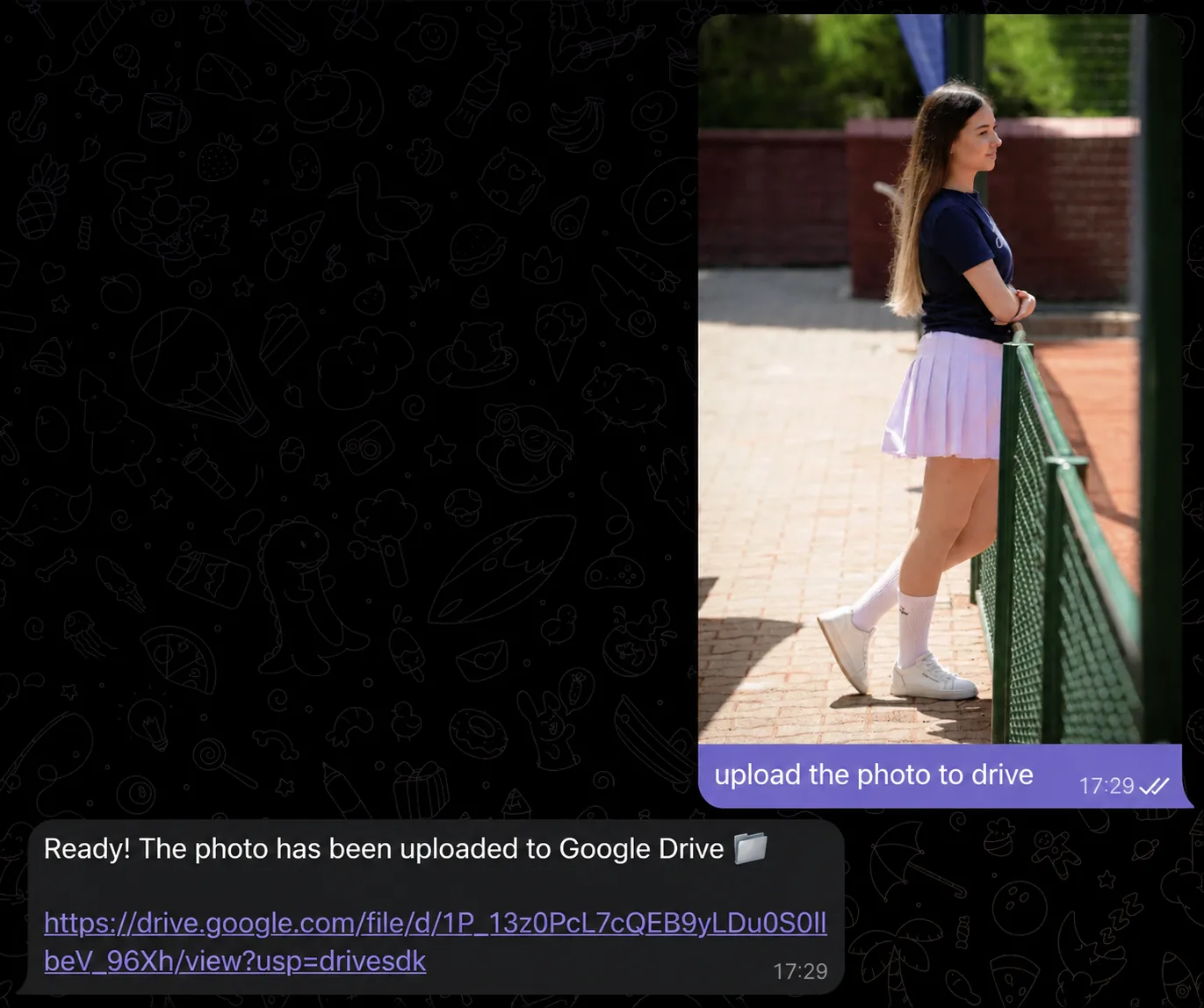
Connecting Drive covers several work scenarios at once: upload a file to storage, find a document, analyze files, create a new one, or delete one you don't need.
What Google Drive can do:
Upload a photo or file — send it to the chat and write "upload to Drive"
Find files and folders by name or type ("find spreadsheets about the project", "show backup folders")
Read and analyze the contents of a Google Doc or Google Sheets
Create a new Google Doc with given text, a new Google Sheets, or a folder
Move a file to another folder
Delete a file or folder
What Google Workspace can't do
An honest look at the limits:
Google Drive can't edit existing files. Creating a new document — yes. Changing an existing one — no.
Google Drive doesn't analyze every format on the drive. Google Docs, Google Sheets, PDFs, and photos — it reads and analyzes them straight from storage. Other formats (DOCX, presentations, archives, etc.) — not yet.
Google Docs and Sheets are read partially — for large files, the AI assistant sees only the first few thousand characters and summarizes those.
Calendar doesn't support recurring events through the AI assistant — one-time only.
Calendar doesn't edit existing events — you can't change the time or name of an already-created event. Only delete and recreate it.
Calendar works only with your primary calendar — additional, work, and shared calendars aren't available.
Gmail works only with your personal account — emails in corporate systems behind a separate sign-in aren't available.
Google Tasks doesn't create new task lists — it works only with existing ones. If you need a separate list, create it in Google Tasks beforehand.
One chat instead of four tabs
Gmail, Calendar, Tasks, and Drive, that's another tab or an open mobile app. Four services, four interfaces, the same work tasks every day.
With VELA's AI assistant, all of it is one chat in Telegram. Write, analyze, or send an email. Add or cancel an event. Jot down a task. Upload or analyze files, all in one place through simple commands to the AI assistant. Your phone or computer is always nearby, Telegram is already on it and open, nothing extra to download or open.
FAQ
Do I have to connect each Google service separately? No. One "Connect" button and one Google sign-in — and Gmail, Calendar, Tasks, and Drive all work right away.
How safe is connecting to Google? Sign-in goes through standard OAuth — the same procedure thousands of other services use for "Sign in with Google." VELA gets only the permissions the integration needs. You can revoke access at any time in your Google account settings.
Is Google Workspace available on Basic? No. Gmail, Google Calendar, Google Tasks, and Google Drive are part of the Pro plan ($12/mo, paid by card, Telegram Stars or crypto). On Basic, you get weather, reminders, web search, photo and document analysis, the morning digest, and other useful modules.
Can I send a file or photo through Gmail? Yes. Send the file or photo to the AI assistant in the chat, then write a request to send an email — the attachment is added automatically.