
A work group in Telegram, several people discussing tasks. Someone asks a question, they need up-to-date information right now. Without VELA's AI assistant that means switching somewhere, finding the answer, coming back to the group, and pasting it in. Add an AI assistant to the group, and a single @assistant_name in the chat handles it.
The feature is available on any plan — Basic and Pro. The only thing you need to do once is turn off Group Privacy in @BotFather (instructions below in the "How to add" section).
How to add the AI assistant to a group
Technically the AI assistant is a Telegram bot that you created through @BotFather and connected to the VELA platform. Adding it to a group is the same as adding any member.
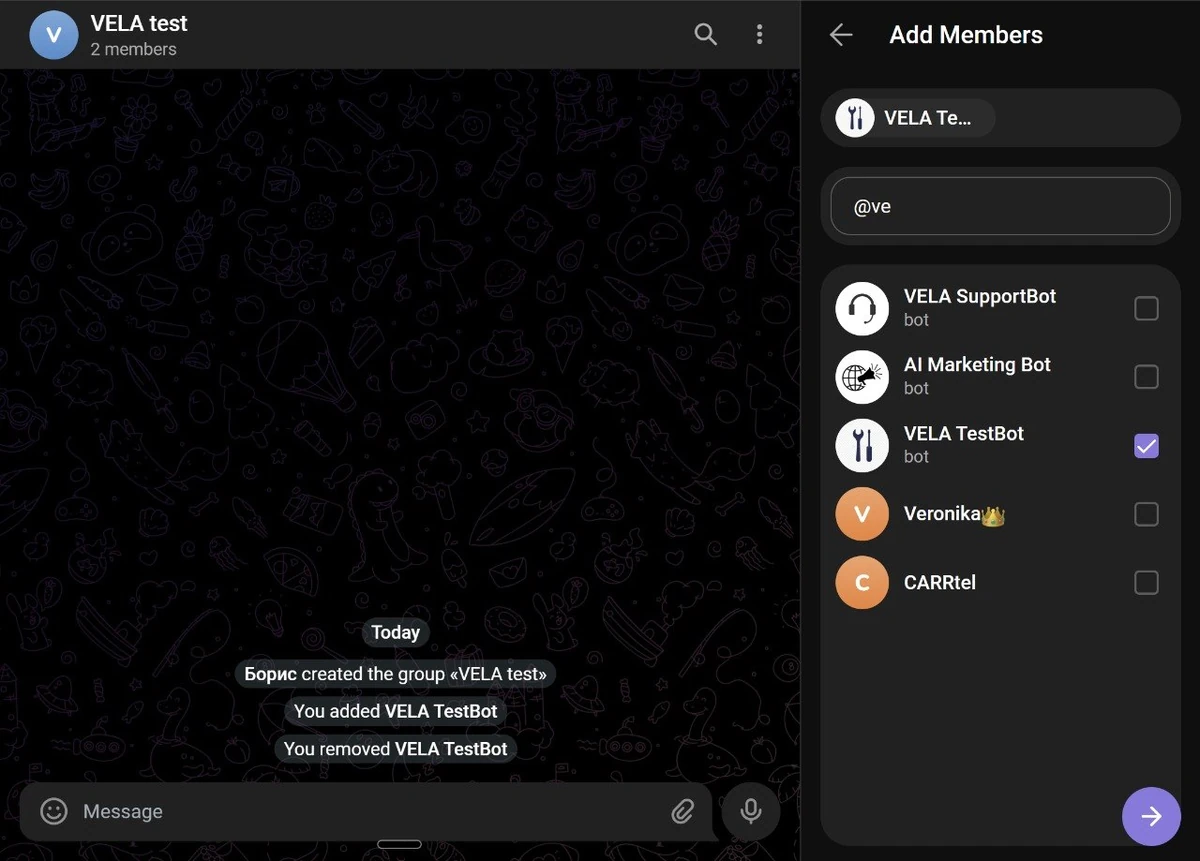
Open the group you need in Telegram (you must be its administrator or owner). Go to the group settings → "Members" → "Add member". Find your bot by @assistant_name, the same name you set in @BotFather when you created it. Tap "Add".
Important: turn off Group Privacy in @BotFather. By default Telegram doesn't deliver group messages to the AI assistant — only commands and replies to its messages. So that the AI assistant receives mentions in the group, open @BotFather: /mybots → your bot → Bot Settings → Group Privacy → Disable (OFF). After that, kick the AI assistant from the group and add it back.
No settings in the VELA dashboard are needed, the AI assistant is ready to work.
How to address the AI assistant in a group
The AI assistant doesn't read every message in the group. It reacts only to three triggers:
@assistant_namein a message. Write@assistant_name what's the weather in Warsaw tomorrow— the AI assistant will answer right in the group chat.A reply to the AI assistant's message. If you reply to its message via the "Reply" function, it'll continue the dialog with the context in mind.
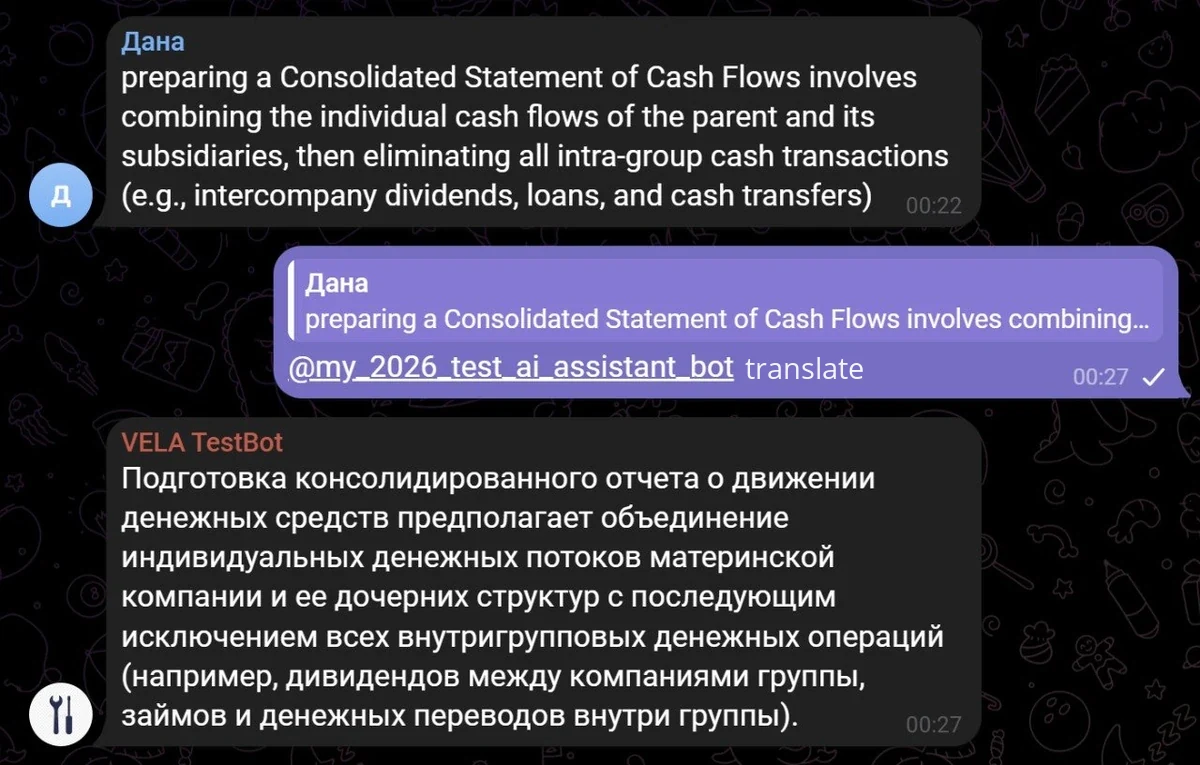
A reply to someone else's message +
@assistant_name. Say a colleague wrote a long text — you reply to their message and add@assistant_name translate to English. The AI assistant will see the colleague's original text and answer with the context in mind.
That's the whole mechanic of this feature. Three ways to call it, all work right away, for free, and on any plan.

Who controls the AI assistant in a group
Only the owner, the one who created the bot through @BotFather and connected it to VELA, turning it into a full-fledged AI assistant. The other group members see its replies, but can't summon it, the AI assistant reacts only to the owner's messages.
The conversation history in the group and in the personal chat with the AI assistant is shared. For example, you asked in the group "find a flight Moscow–Dubai", and then in the personal chat right after "find a flight back", the AI assistant remembers the conversation context (within the dialog memory: 30 messages on Basic, 100 on Pro; older messages get compressed into a memory summary, so they aren't lost).
Three scenarios where it's genuinely convenient
A work group with the team. Ivan and three developers are discussing a task. Someone recalls: "what's the name of that caching pattern?". Ivan writes @assistant_name explain backend caching patterns — the AI assistant answers right in the chat, where everyone can see it. No one has to google, switch to another app or the browser, or copy over text and a source link. It's all quick, right in the flow of the chat.
Another scenario: they're discussing a business trip and need up-to-date data. @assistant_name find direct flights Minsk — Dubai in July under $400, the flight search module works right from the group chat, if the AI assistant's owner is on the Pro plan.
A family group. Dmitry, his wife and kids are planning a trip to Prague. @assistant_name the weather in Prague for the weekend — the whole family sees the answer at once, and no one has to switch apps or forward screenshots from somewhere else. Right there you can ask about the route, the koruna-to-ruble rate, or a restaurant near the hotel — everything the trip needs.
A group chat with clients. Irina runs a small project and communicates with a client in a Telegram group. When the client sends a document in English — Irina replies to the message and writes @assistant_name translate to Russian. The AI assistant sees the colleague's text message and performs the task.
Which modules work in a group
All modules according to your current plan. Everything works through @assistant_name or replies exactly the same as in a personal chat.
Reminders, price alerts and the morning digest arrive where they were set up, in the personal chat or right in the group.
There's one more way: inline mode: you type @assistant_name right in the input field of any chat and pick an answer. But that's a different mechanic, without dialog history, without Google and Notion integrations, without notifications.
What the AI assistant doesn't do in a group
Doesn't read every message in a row — only on an explicit call via
@assistant_nameor a reply.Doesn't answer other members — only the owner.
Doesn't moderate the group: can't ban members, doesn't delete other people's messages.
Doesn't get admin rights automatically — it's a regular member.
FAQ
Is additional configuration needed to use the AI assistant in a group? One step in @BotFather: Bot Settings → Group Privacy → Disable. In the VELA dashboard nothing needs to be configured.
Do other group members see the AI assistant's replies? Yes, the replies are public — everyone in the group sees them. If you need a private answer, it's better to write to the AI assistant in a personal chat directly.
Can another member summon the AI assistant? No — it reacts only to the owner and ignores other members' messages.
Which plan does the AI assistant work on in groups? On both — Basic and Pro. The difference is what's available: on Basic that's weather, rates, internet search, document analysis and other basic modules. On Pro flight search, price alerts, the Google Workspace integration and image & video generation are added.