
Pulling info from a receipt, recognizing text in a picture (in any language), seeing what's written in a file and asking questions about it, or counting the calories in food or a dish — usually all of this takes several steps: pick an app to process the information, upload the file, wait for the result, ask follow-up questions. And when it's never in one place, things get lost or duplicated until you can't make sense of them. The "Photo and Document Analysis" module in VELA's AI assistant handles all of it right in Telegram — in one chat, in the messenger you always have on you.
What the module does and which plan it's on
The module is part of the free Basic plan — no upgrade required. It's active as soon as you've created and connected your Telegram bot to VELA. On Basic — up to 5 photos and 5 files a day. On Pro — up to 30 photos and 30 files a day.
What the AI assistant can do with photos and documents:
Analyze any image — a photo, screenshot, scan, or shot of a receipt — describing the content: people, objects, text, details
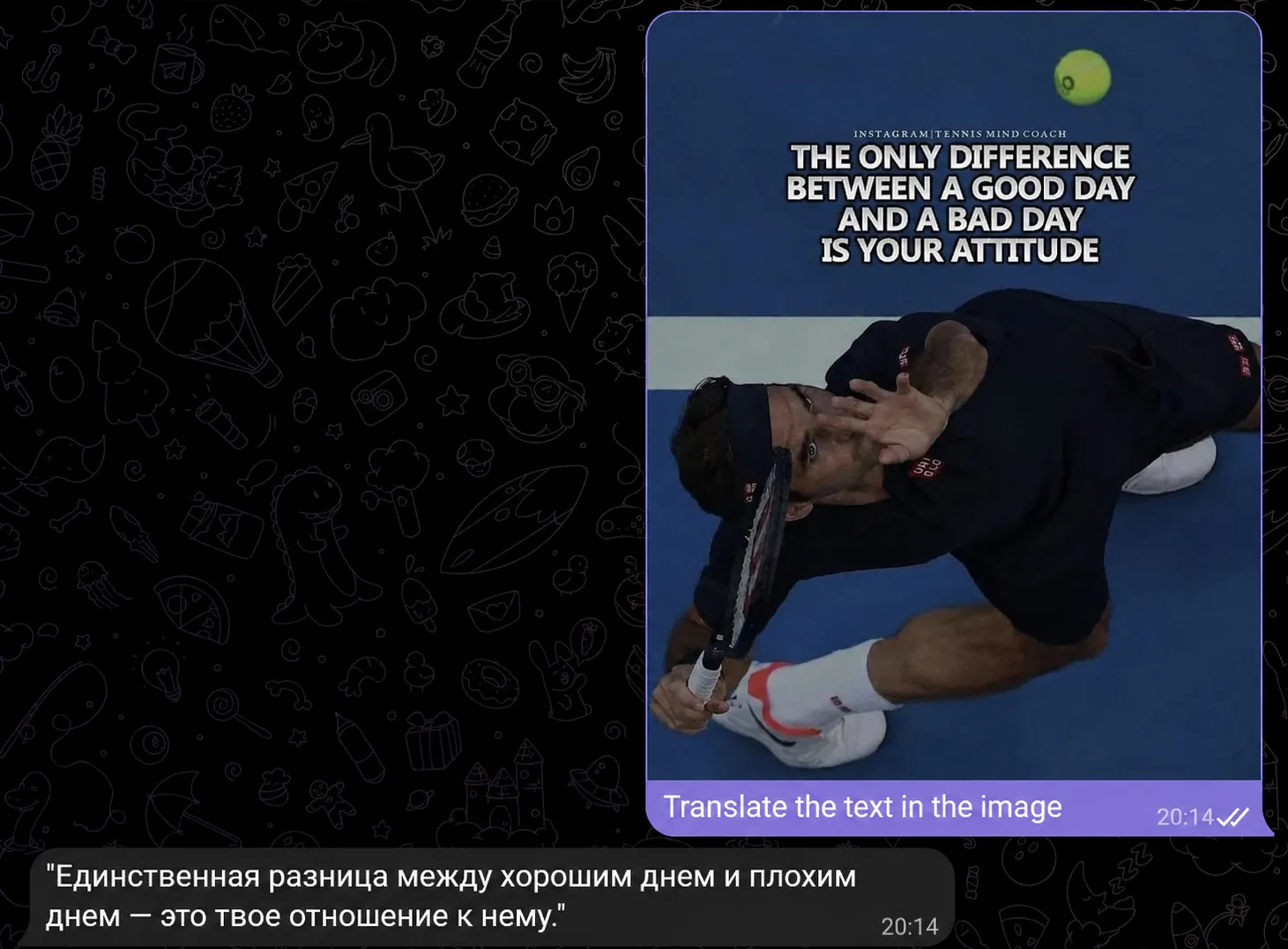
Recognize text in an image — reads screenshots and photos of documents
Analyze documents — PDF, DOCX, DOC, TXT, XLSX — extracting text, a summary, and answers to questions about the content
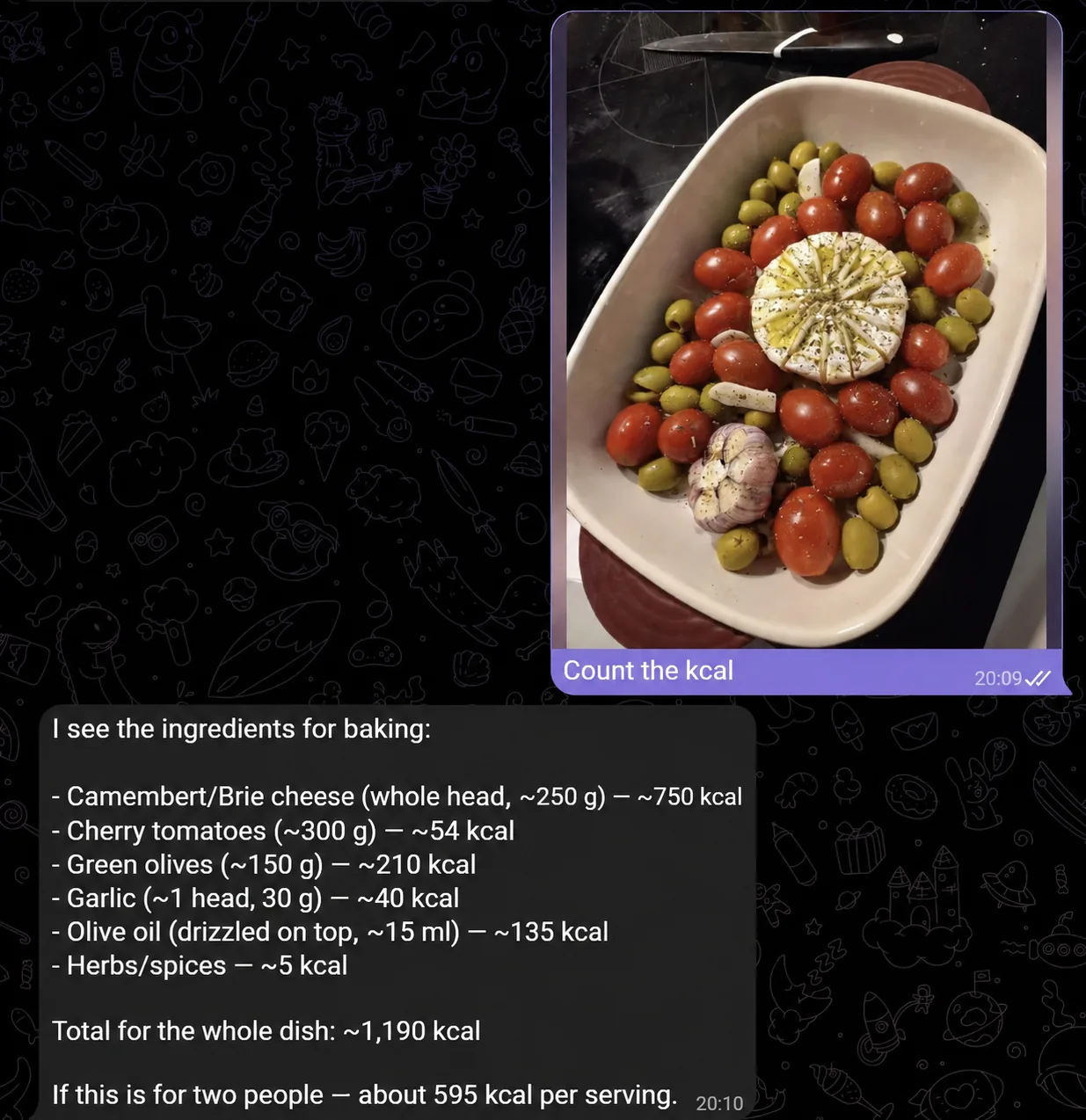
Count calories from a photo of food — with an estimate per dish and a total
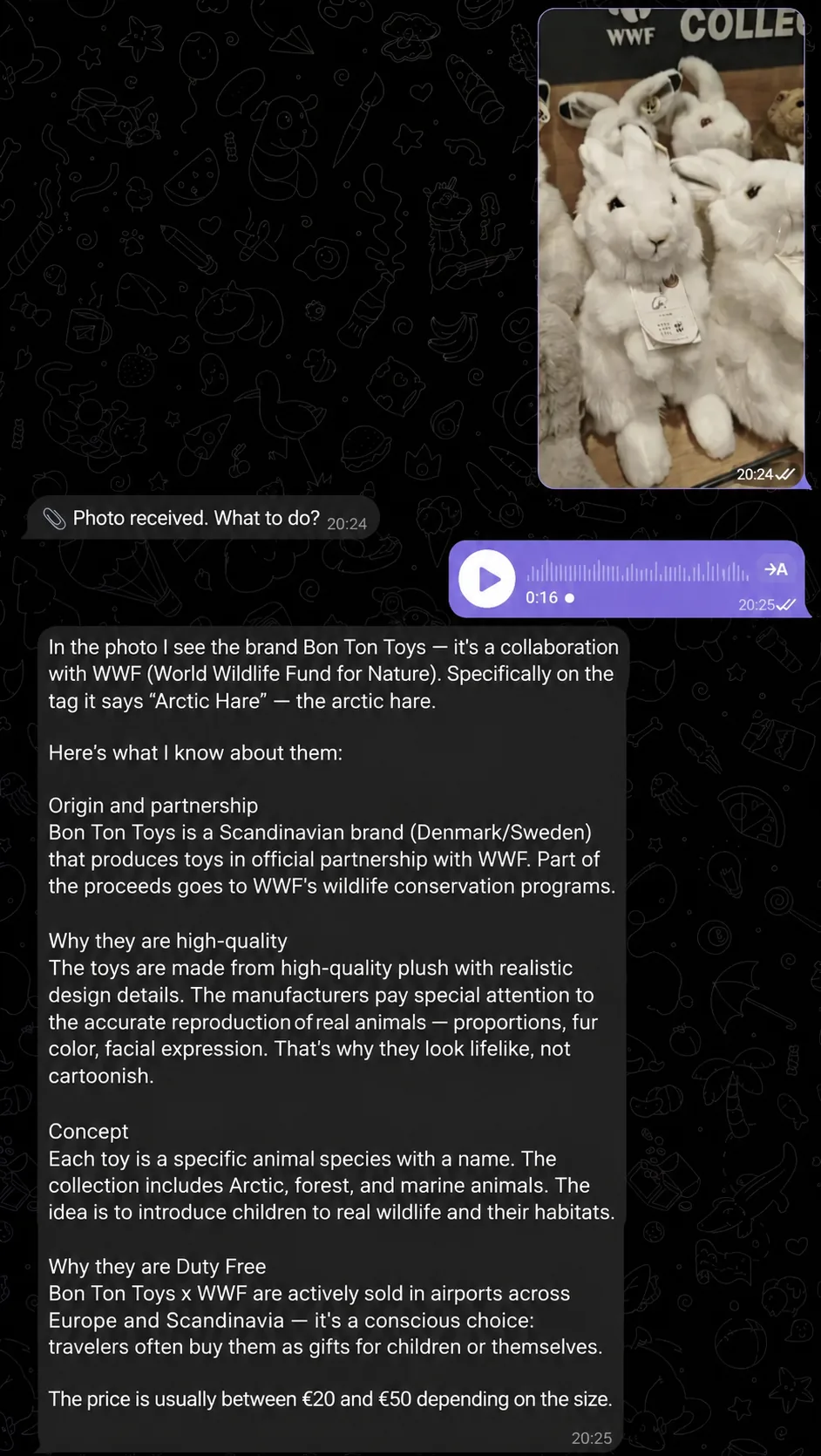
One important nuance: if you send an image or file without a caption, the AI assistant won't start analyzing it on its own. It saves the file and replies: "📎 Photo received. What should I do? — Analyze" and waits for your next command (on Pro, the reply also includes "Send to email" and "Upload to Drive"). Analysis happens only when you explicitly ask. The file stays in the buffer for 30 minutes — if you don't say what to do with it in that time, you'll need to send it again.
How it works: no settings
The "Photo and Document Analysis" module doesn't need to be turned on separately in the VELA dashboard. It works on Basic right away — unlike some other modules, there's no card with settings here. Just open the chat with the AI assistant in Telegram, attach a file, and write what you need. Ask follow-up questions during the conversation if needed.
How to use it: example requests
You can talk to your AI assistant in plain text. Send an image or document with a caption:
"describe what's here" — analyze any image: photo, screenshot, scan
"what does this document say" — recognize text from a photo or scan
"count the calories" — estimate calories from a photo of a dish or food
"analyze this file" — a summary of what the document is about
"what's on this receipt" — read the text from a photo of a receipt
"translate the text from this screenshot" — first recognizes, then translates into the language you need
"find the main point" — analyze the uploaded document by a key query
For documents (PDF, DOCX, DOC, TXT, XLSX): send the file — the AI assistant reads it automatically and gives a summary. You can add a caption with a specific request ("find the main point," "what does it say," etc.).
For photos of food or a dish: the caption "count the calories here" triggers the calorie estimate. The AI assistant names the dishes or type of food in the photo, estimates the portion, and gives an approximate calorie count.
By voice
You don't have to type. The AI assistant recognizes voice messages and handles them just like text.
First send the file — the AI assistant saves it. Then, in a separate message, send a voice note: "describe what's here" or "count the calories". The AI assistant transcribes the speech and does the task. Handy when typing is awkward.
Voice input works for any request — description, text recognition, document analysis.
What the module can't do — honestly
An honest look at the limits:
Daily limit: on Basic — up to 5 photos and 5 files a day; on Pro — up to 30 photos and 30 files a day.
Doesn't analyze files without a caption automatically. If you attach something and write nothing, the AI assistant asks what to do with it.
Calories are an estimate, not exact. Counting from a photo of food is approximate: the AI assistant doesn't know the exact portion weight or recipe. The result is a guide, not precise.
Doesn't edit documents. It reads and analyzes, answers questions about the file, but can't change it.
Excel — text and numbers only. Formulas and charts aren't extracted from spreadsheets.
Doesn't save files to Drive automatically. Files stay in the conversation context. If you need to save one, ask the AI assistant to upload it to Drive (the Google Workspace module is available on Pro).
If you're interested in automatically sending files to Google Drive or Gmail — those are tasks for Google Workspace, a module available on the Pro plan.
Why it's easier than separate apps
Every time you need to recognize text, analyze a document or an image — it's finding the right site or app, uploading, waiting for the result, and organizing the results so nothing gets lost.
With the "Photo and Document Analysis" module, everything stays in one place — in Telegram, which you use all the time. A photo of a dish, a screenshot with text, a file from a colleague — all in one chat. The context is kept: you can clarify, ask again, request a translation, and so on.
If you already use the AI assistant for reminders or web search — photo and document analysis fits naturally into that set, with no new settings required.
FAQ
Do I need to turn anything on to analyze photos and documents? No. The module is active right away on Basic — no extra steps. The limit on Basic is up to 5 photos and 5 files a day; on Pro — up to 30 photos and 30 files a day.
Can I send several photos or files at once? Yes, up to 5 photos in one message with a caption — the AI assistant processes them together. Without a caption, it asks what to do with them.
Why didn't the AI assistant describe the photo I sent? If a photo is sent without a caption, the AI assistant doesn't describe it automatically. Write what you need — and it answers.
How accurate is the calorie count? Accurate, with caveats. The AI assistant names the dish or food in the photo and gives an approximate calorie count based on a visual estimate of the portion. It doesn't know the exact weight or recipe — treat the result as a guide, not absolute truth.
Which formats are supported? Images (JPG, PNG, and other standard formats) and documents: PDF, DOCX, DOC, TXT, XLSX (Excel). An unsupported format is rejected, and the AI assistant shows the list of supported ones.