
Opening Gmail for a single email feels like nothing. But do it five or six times a day and it's the same drill every time: open the app, find the right message, read it, reply, send. Connecting Gmail to VELA's AI assistant moves that routine into Telegram — the app you already keep open all day. You type one line in the chat and get the result.
Gmail is part of the Google Workspace module and is available on the Pro plan. One connection of your Google account gives access to Mail, Calendar, Tasks and Drive — without separate authorizations for each service.
How to find and read a Gmail email in Telegram
Most often you open email for one specific message: an invoice from a supplier, a reply from a client, a booking confirmation, an authorization code, a jobs newsletter, etc. Not to view the whole inbox or clean it up.
The AI assistant understands free-form requests. A few basic examples:
"show emails from Anton this week"
"unread in the inbox"
"find the utilities invoice for this month"
"the email with the subject 'contract'"
Per request the AI assistant shows up to 10 emails. This is a deliberate limit: it's a tool for quick tasks, not a browser for email. You won't be able to look through hundreds of emails here — that's what Gmail itself and its app are for. But finding the email you need and reading it right in the Telegram chat, asking questions about it or replying and sending text in response — that's fast and convenient.
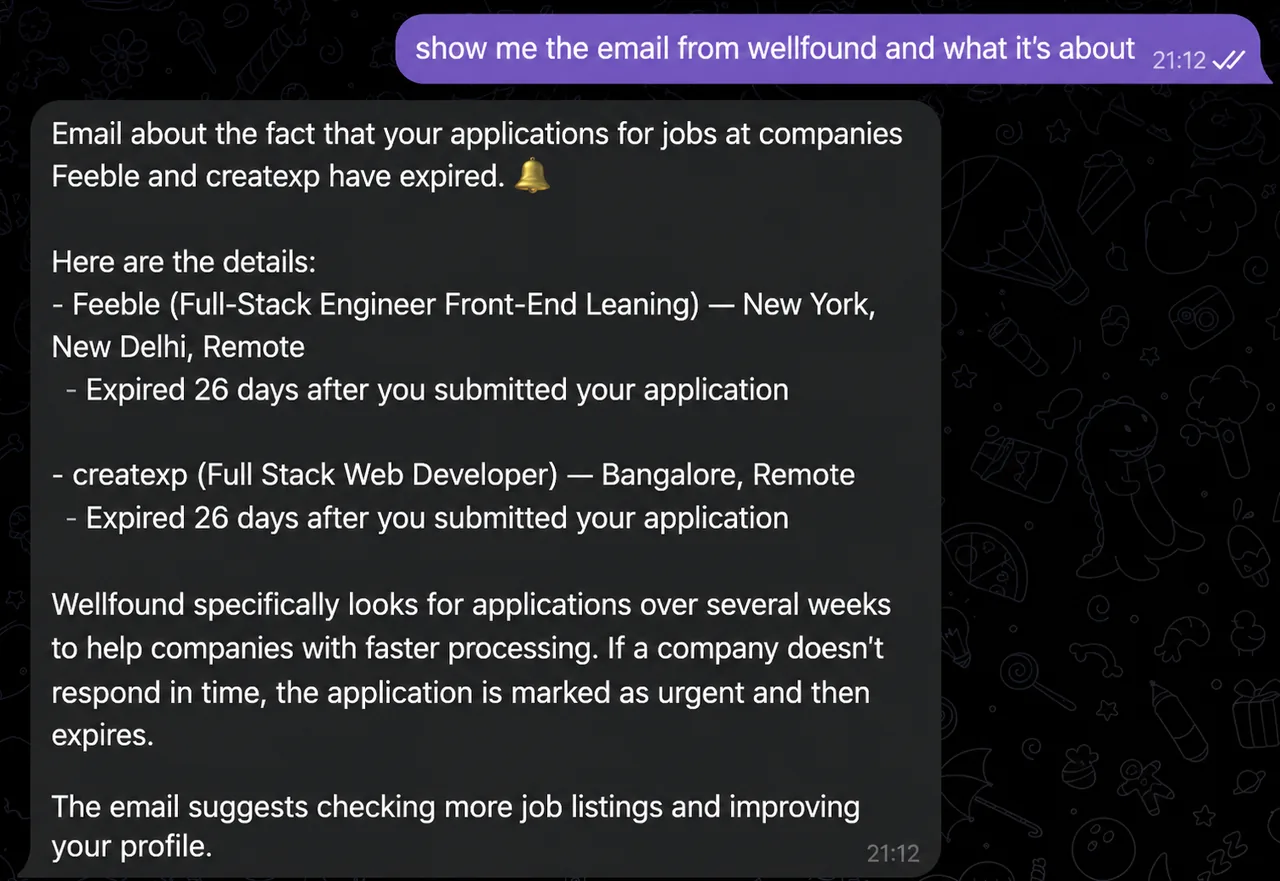
Once the emails are found, you can ask to read the full text of any of them — the AI assistant will display it right in the chat. After that, work with it however you like: ask questions, save it separately, or ask the AI assistant to compose a reply and send it.
Reply, send, save a draft
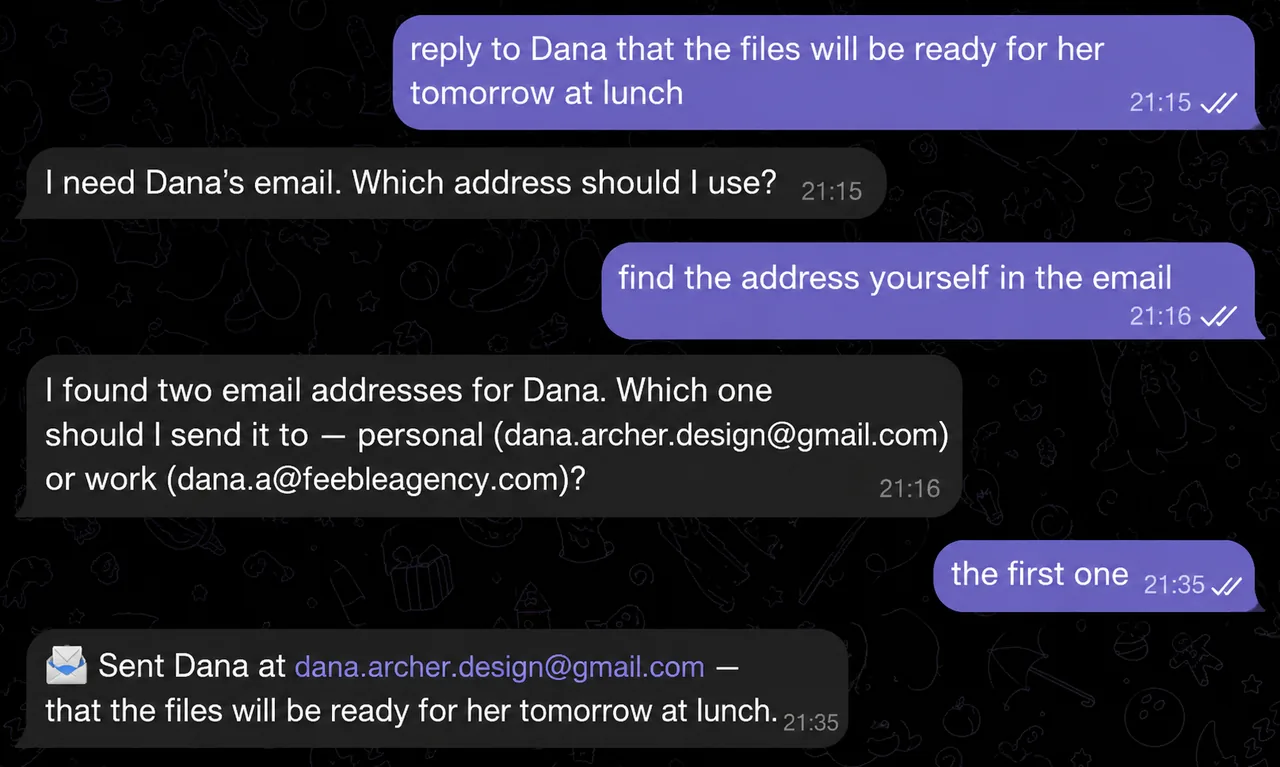
You can reply to an email without leaving Telegram. The AI assistant keeps the thread context — the reply goes into the same conversation, not as a new email.
"reply to Marina that the meeting is moved to Friday at 14:00"
"write to Dmitry that we'll send the documents tomorrow"
If you need to send a new email to an unfamiliar contact who isn't in a previous conversation and isn't saved in the AI assistant's memory — it'll ask you to clarify the email address. That's normal: the email address is needed explicitly so the email goes to the right person.
There's a draft option too: ask "save a draft of the email" — the AI assistant will create it in Gmail's "Drafts" folder, from where you can refine and send it later.
You can attach a file or photo to an email. Just send the attachment to the chat with the AI assistant, then ask to include it in the email — the AI assistant will pick up the file from the context and attach it. This is handy, for example, when you need to forward a document received in Telegram straight to email.
Unsubscribe from Gmail newsletters and delete the extras
Newsletters are a separate pain. Each time you have to open the email, find the tiny "unsubscribe" link in the footer or, if you're lucky, in the header, go to the site, confirm the action. One minute per newsletter, a routine action that gets tiring to do by hand.
The AI assistant does it itself: "unsubscribe from the XYZ newsletter" — it finds the unsubscribe link in the email and unsubscribes for you automatically. Your job is only to write the request.
Bulk deletion works in a similar way. If you need to remove all emails from a specific sender:
"delete all emails from store Y's newsletter"
"move everything from sender X to trash"
Each request deletes up to 25 emails. If there are more, just repeat it.
You can also empty the trash ("empty the trash"), clear the spam folder ("clear spam"), or mark an email as spam — all with one message in the chat.
What the module can't do
Honest limits, so there are no surprises:
Doesn't show more than 10 emails at a time — it's a quick helper, not a full email client
When sending to a new contact you need to clarify the email address, if it isn't saved in the AI assistant's long-term memory
No automatic sorting or categorization of emails — only search and actions on request
If you need to work with email at the scale of "sort through the whole month's inbox" — that's easier to do in Gmail itself. The email feature in the AI assistant covers quick daily tasks: find, reply, delete, unsubscribe.

Connecting Gmail, and what comes with it
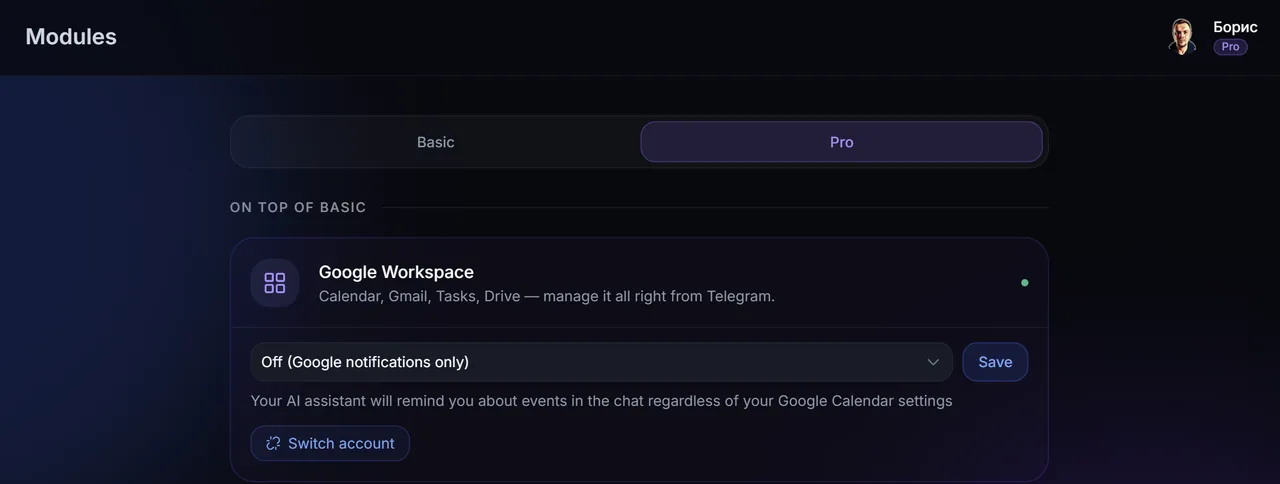
Gmail is connected through the VELA dashboard — the "Modules" section, the paid Pro plan, the Google Workspace module card, the "Connect Google" button. Standard authorization through your Google account, once. After that four services are immediately available: Mail, Calendar, Tasks and Drive.
This is convenient: one connection, and your whole Google Workspace works in Telegram. You can read an email, add a meeting from it to the calendar, set a task for the next day — all in one chat.
Working with email requires the Pro plan ($9/mo or $7/mo with annual billing). If you're interested in what else is in Pro besides Google Workspace — that's flight search, price alerts, advanced cryptocurrency search, image generation and other useful modules.
Similar logic works with other integrations on the Pro plan: for example, reading Telegram channels or managing Notion — all through one chat, without switching between apps.
FAQ
Do I need to give the AI assistant access to my entire mailbox? Yes, connecting through Google OAuth gives access to the mail. VELA uses it only on your requests — the AI assistant doesn't read emails in the background and doesn't analyze them without your explicit request.
Can I connect only Gmail, without Calendar and Tasks? No — Google Workspace is connected as one module. One authorization gives access to Mail, Calendar, Tasks and Drive at once. You can't connect just one service separately.
What happens if the AI assistant doesn't find the email I need? It'll report that nothing was found for your request. Try to clarify — a different sender, a different period, or a different keyword from the email's subject.
Which plan is Gmail available on? Only on Pro ($9/mo). On Basic (the free plan) Gmail isn't available. You can switch to Pro by paying with a card from the dashboard or with Telegram Stars right in the chat with the AI assistant.